
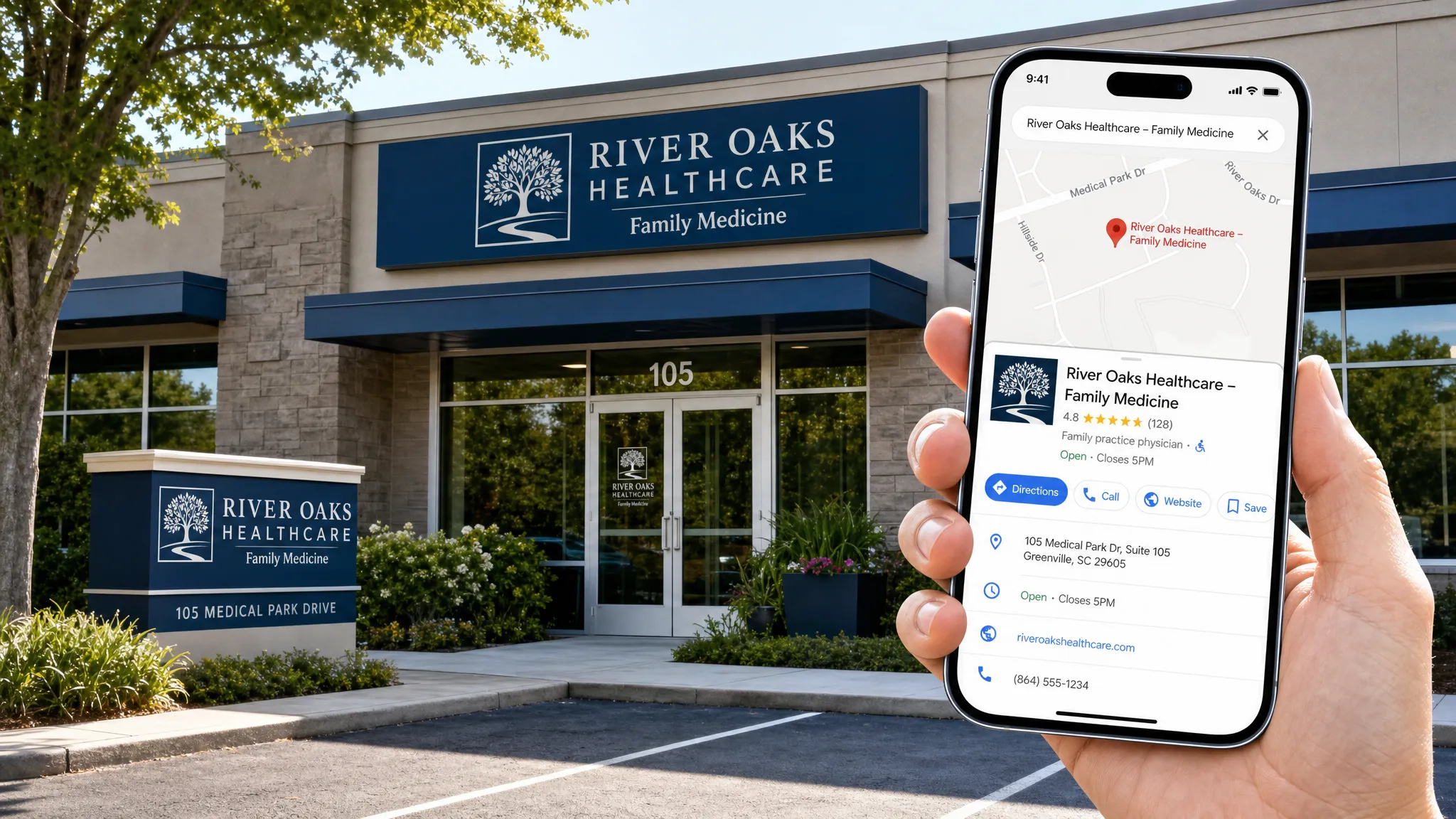
When a patient searches “dentist near me,” “eye doctor open today,” or “chiropractor in Louisville,” Google Maps is often the first place they compare options. Your listing can show your location, hours, phone number, reviews, photos, services, and appointment links before the patient ever visits your website.
So if you are searching “add my business to Google Maps,” the real goal is not just getting a pin on the map. The goal is to create a clean, verified, trustworthy local presence that helps patients choose your practice and contact you.
For healthcare practices, this matters even more. A wrong phone number, duplicate listing, inaccurate hours, or keyword-stuffed practice name can cost you appointments, confuse patients, or trigger Google Business Profile issues. Here is how to do it the right way.
Google Maps listings come from Google Business Profile
You do not add a healthcare practice to Google Maps by editing Maps alone. In most cases, your Google Maps listing is powered by your Google Business Profile, often called GBP.
A Google Business Profile is the business listing that appears across Google Search and Google Maps. It controls your practice name, address, phone number, website, category, hours, reviews, services, photos, and other local business details.
If your practice already appears on Google Maps, you usually need to claim and verify the existing profile. If your practice does not appear, you need to create a new profile and verify it.
That distinction is important because creating a second listing when one already exists can lead to duplicate profiles, ranking problems, or patient confusion. Before you create anything new, always search for your practice name, address, and phone number in Google Maps.
Before you start, gather the right practice information
A Google Maps listing is only as strong as the information behind it. Before you begin, collect the exact details you want Google and patients to trust.
You will need your legal or public-facing practice name, physical address, main phone number, website URL, appointment page, primary category, secondary services, business hours, holiday hours, and a Google account that your practice controls.
For most dental, optometry, chiropractic, physical therapy, pain management, and specialty practices, the profile should use the same name patients see on your exterior signage, website, insurance directories, and appointment reminders. Do not add extra keywords to the business name unless they are part of your real-world branding.
For example, “River City Family Dental” is appropriate if that is your actual practice name. “River City Family Dental Best Dentist Louisville Implants Emergency Dentistry” is not. Google may edit it, suspend it, or reduce trust in the listing.
Step-by-step: how to add your business to Google Maps
The exact screens may change over time, but the process generally follows the same path.
1. Sign in with the right Google account
Use a Google account owned by the practice, not an employee’s personal Gmail account. This prevents problems later if a team member leaves.
For healthcare groups with multiple locations or providers, ownership and permissions matter. The owner account should be controlled by the practice or organization, while managers can be added as needed. If your office coordinates with an outside technology team, make sure account access, email security, and recovery methods are handled professionally.
2. Search for your practice on Google Maps first
Open Google Maps and search for your practice name. Then search your address and phone number separately.
If your practice appears, do not immediately create a new listing. Open the listing and look for an option such as “Own this business?” or “Claim this business.” Follow the prompts to request ownership or begin verification.
If a previous owner, former agency, or old employee already controls the profile, you may need to request access. Google typically gives the current owner time to respond. If they do not, you may be able to proceed through Google’s recovery process.
3. Create a new profile only if no accurate listing exists
If your practice is not already listed, go to Google Business Profile and start a new profile. Enter your practice name exactly as it appears publicly.
Google may show potential matches as you type. Review them carefully. If one is your business, claim that existing profile instead of creating a duplicate.
This is one of the most common “wrong way” mistakes. Many practices create a new profile because they cannot access the old one, then both listings compete with each other. Patients may call the wrong number, visit the wrong location, or leave reviews on the wrong profile.
4. Choose the most accurate primary category
Your primary category helps Google understand what your practice is. It can influence when your listing appears in local searches.
Choose the most specific accurate category available. A general dentist might use “Dentist.” An orthodontic practice might use “Orthodontist.” An optometry practice might use “Optometrist.” A chiropractic clinic might use “Chiropractor.”
Do not choose categories just because they have search volume. Choose categories that accurately describe the care you provide. You can add additional categories where appropriate, but the primary category should represent your core service.
5. Enter your physical address carefully
For most healthcare practices, your physical location is central to Maps visibility. Enter the address exactly and check the map pin.
Suite numbers matter. Building names matter. Consistency matters. If your website says “Suite 210,” your Google listing should not say “Ste. 200” unless that is the correct address.
After entering the address, adjust the map pin if Google places it incorrectly. This is especially important for medical office parks, multi-tenant buildings, hospitals, and practices in shopping centers.
6. Add your phone number and website
Use the phone number patients should call to book appointments. If you use call tracking, implement it carefully so your main practice number remains consistent across important local citations.
Add your main website URL or a location-specific page if you have multiple locations. For appointment-driven practices, the website page should make it easy to call, request an appointment, or understand next steps.
If you are still building your broader local visibility, Louisville Web Lab has a separate guide on how to create a Google Business Profile for your practice that expands on the setup process.
7. Set accurate hours and special hours
Enter your normal patient-facing hours. If your phones open earlier than your clinical schedule, decide which hours best represent when patients can reach the practice and get help.
Add special hours for holidays, closures, training days, and seasonal changes. Incorrect hours are one of the fastest ways to frustrate patients and attract negative reviews.
For urgent care, dental emergency, pain management, or same-day appointment practices, accurate hours can directly affect calls. If a patient filters results by “open now,” your hours must be correct.
8. Complete verification
Google may offer verification by video, phone, text, email, postcard, or another method. The available option depends on your business type, account history, and Google’s trust signals.
Video verification has become more common for local businesses. If Google asks for video, be prepared to show exterior signage, the entrance, interior workspace, equipment, and proof that you are authorized to represent the practice.
Do not rush this step. A failed or incomplete verification can delay your listing. Make sure the person completing verification has access to the location and understands what Google is asking for.
9. Add services, photos, and a business description
After verification, complete the profile. Add your services, a concise business description, office photos, logo, exterior photo, interior photo, and team photos where appropriate.
For healthcare, photos should feel professional and reassuring. Show the office entrance, waiting area, treatment rooms where appropriate, and recognizable exterior views that help patients find you.
Your description should explain who you help, where you are located, and what services you provide. Avoid promotional hype, medical claims you cannot support, and keyword stuffing.
10. Review the live listing on Search and Maps
Once the profile is live, search for your practice name on Google Search and Google Maps. Check every major detail from a patient’s perspective.
Call the phone number. Click the website link. Test the appointment link. Confirm directions. Look at your map pin. Review your hours. Check how the listing looks on mobile.
This final review catches simple mistakes that can quietly reduce patient calls.
Common mistakes to avoid when adding a business to Google Maps
Adding your practice to Maps is not difficult, but small errors can create long-term local SEO problems. The table below summarizes the issues we see most often.
| Mistake | Why it hurts | Better approach |
|---|---|---|
| Creating a duplicate listing | Splits trust, reviews, and ranking signals | Search Maps first, then claim the existing listing if it exists |
| Adding keywords to the business name | Can violate Google guidelines and trigger edits or suspension | Use your real-world practice name only |
| Choosing broad or inaccurate categories | Confuses Google about your services | Pick the most accurate primary category |
| Using inconsistent phone numbers | Weakens local citation trust | Use a consistent main number or manage call tracking carefully |
| Ignoring verification requirements | Delays visibility on Maps | Prepare documents, signage, and access before verifying |
| Forgetting special hours | Creates patient frustration during closures | Update holidays and temporary schedule changes in advance |
| Letting former employees control access | Creates ownership and security risks | Use practice-owned accounts and proper manager permissions |

Healthcare-specific considerations for Google Maps
Healthcare practices have a few extra decisions to make when setting up Google Maps correctly.
Practice listings vs practitioner listings
Google may allow separate listings for individual practitioners in some cases, such as doctors, dentists, optometrists, chiropractors, or specialists who see patients at a specific location.
However, practitioner listings can create confusion if they compete with the main practice listing. They can also become difficult to manage when providers move, retire, or change schedules.
A good rule of thumb is to prioritize a strong practice listing first. If individual provider listings are useful, make sure each one has accurate categories, contact details, and naming that follows Google’s rules.
Multi-location practices
If your practice has multiple locations, each eligible location should usually have its own profile. Each listing should use the correct address, local phone number when possible, location-specific hours, and a relevant landing page.
Do not point every location to a generic homepage if you have dedicated location pages. A patient searching near one office should land on information for that office.
Clinics inside larger facilities
If your clinic is inside a hospital, medical building, vision center, or shared facility, make the address as clear as possible. Include suite numbers and check the map pin carefully.
Photos can help here. An exterior photo of the building plus an interior photo of your entrance can reduce missed appointments and “I could not find you” calls.
Service-area settings
Most healthcare practices should display a physical address because patients visit the office. Service-area-only settings are usually more appropriate for businesses that travel to customers and do not serve them at a storefront.
If you provide home visits or mobile care, you may need a more nuanced setup. Be careful not to hide your address if patients also visit your clinic.
What to do after your practice is on Google Maps
Getting listed is step one. Ranking well and converting searchers into patients requires ongoing work.
Your Google Business Profile should be maintained like a front desk asset. It needs accurate information, fresh photos, regular review management, service updates, and performance tracking.
Reviews are especially important for healthcare decisions. Patients often compare star ratings, review count, recency, and the tone of patient feedback before calling. If your practice needs a better review process, this guide on how to get more Google reviews in Louisville explains how to build a system without relying on random patient goodwill.
Local ranking also depends on relevance, distance, and prominence. Your categories, website content, citations, reviews, and overall local authority all contribute. If your goal is to show up more often in competitive searches, study the factors that influence the Louisville Google Map Pack, especially if nearby competitors are already getting the calls you want.
A simple Google Maps setup checklist
Use this checklist before and after your listing goes live.
| Setup item | What to confirm |
|---|---|
| Practice name | Matches real-world signage and website branding |
| Address | Includes correct suite number and map pin placement |
| Phone number | Rings to the correct front desk or scheduling team |
| Website | Sends patients to the most relevant page |
| Primary category | Accurately reflects your main healthcare service |
| Hours | Includes normal hours and special holiday hours |
| Verification | Completed through the method Google provides |
| Photos | Includes exterior, interior, logo, and helpful location visuals |
| Services | Lists major services without exaggeration or keyword stuffing |
| Access | Owned by the practice, with appropriate manager permissions |
Troubleshooting: what if something goes wrong?
Your practice already has a listing you cannot access
Request ownership through Google Business Profile. If the current owner does not respond, Google may allow you to verify your relationship to the business and gain access.
Do not create a duplicate profile unless you are certain the existing listing is not your business. Even then, proceed carefully.
Your verification method is not working
Check that your address, phone, signage, and business information are consistent. If video verification is required, prepare before starting. Show the exterior, entrance, business signage, interior, and proof of management access.
If verification continues to fail, review Google’s instructions and avoid repeated rushed attempts with incomplete information.
Your listing was suspended
Suspensions can happen for guideline issues, suspicious edits, address problems, keyword stuffing, or ownership concerns. Review your practice name, address, category, website, and phone number. Correct obvious issues before submitting a reinstatement request.
For healthcare practices, avoid making aggressive edits repeatedly in a short period. Clean, accurate, patient-facing information is safer than trying to force rankings through risky changes.
Your old address still appears after a move
Update the existing profile rather than creating a new one when possible. Make sure your website, major directories, appointment platforms, and social profiles all reflect the new address.
A move can temporarily disrupt visibility, so update information in advance when you can.
Frequently asked questions
How long does it take to add my business to Google Maps? The setup can take less than an hour, but verification may take longer depending on the method Google requires. Some profiles appear quickly after verification, while others need additional review.
Is Google Business Profile free? Yes, creating and managing a Google Business Profile is free. Practices may still invest in SEO, ads, website improvements, photography, or marketing help to improve visibility and conversion.
Can I add my healthcare practice to Google Maps without a physical office? It depends on how you serve patients. Most healthcare practices need a real, eligible location where patients can receive care. Virtual offices, rented mailboxes, or locations without proper signage and staffing can create verification or suspension problems.
Should each provider have a separate Google Maps listing? Sometimes, but not always. A provider listing may make sense for individual practitioners who see patients at a location, but it should not create confusion or compete unnecessarily with the main practice profile.
What is the biggest mistake to avoid? The biggest mistake is creating a duplicate listing instead of claiming the existing one. The second biggest is using a keyword-stuffed business name that does not match your real practice name.
Turn your Google Maps listing into booked appointments
Adding your business to Google Maps is the foundation. The next step is making sure your listing, website, reviews, and local SEO work together to generate qualified patient calls and appointment requests.
Louisville Web Lab helps healthcare practices improve visibility across Google Maps, local SEO, Google Ads, websites, and patient acquisition systems. If you want a clearer plan for turning local searches into measurable practice growth, book a diagnostic call with Louisville Web Lab.