
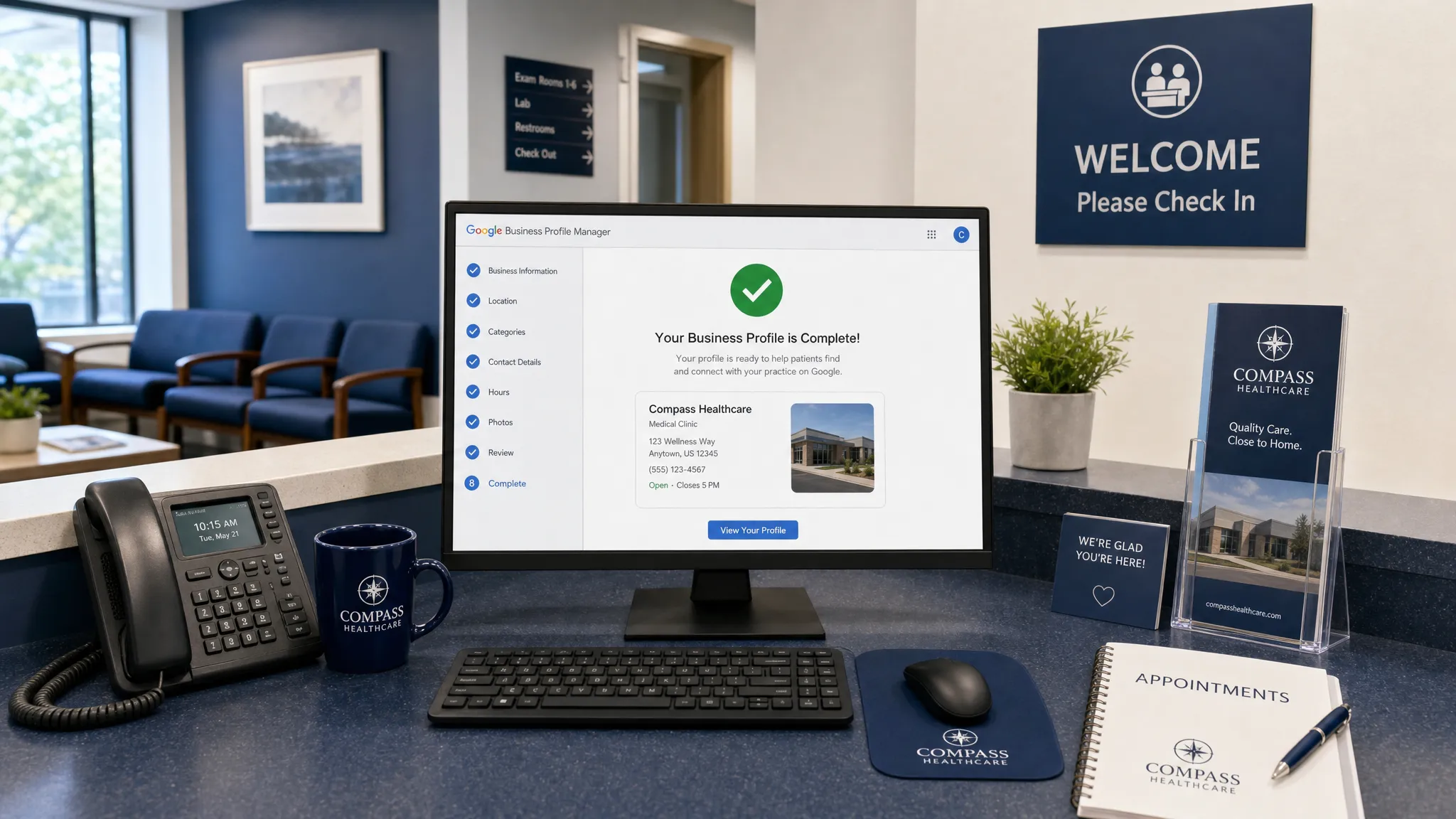
For many healthcare practices, Google is the front door. A patient may hear your name from a friend, search for a dentist near their office, compare chiropractors after work, or look up an eye care clinic from their phone. In each case, your Google Business Profile often appears before your website does.
That is why learning how to create a Google Business Profile is one of the highest-leverage local marketing steps a practice can take. It helps Google understand who you are, where you are, what you offer, when you are open, and how patients can contact you.
A profile alone will not solve every marketing problem. But if it is accurate, complete, and actively maintained, it can support more calls, direction requests, website visits, appointment inquiries, and local visibility.
Why your practice needs a Google Business Profile
A Google Business Profile, often shortened to GBP, is the business listing that can appear in Google Search and Google Maps. It includes your practice name, address, phone number, hours, reviews, photos, services, appointment links, and other details patients use to decide whether to contact you.
For healthcare practices, this profile is not just a directory listing. It is a trust checkpoint. Patients use it to answer practical questions quickly: Are you close by? Are you open today? Do you offer the service they need? Do other patients seem satisfied? Is your office easy to find? Does your practice look professional?
Google uses many signals to decide which local businesses to show. The core local ranking concepts are relevance, distance, and prominence. A complete profile helps with relevance because it gives Google clearer information about your services. Reviews, photos, citations, and website strength can contribute to prominence. Location helps determine distance. If you want a deeper local ranking breakdown, Louisville Web Lab has a separate guide on how to improve visibility in the Google Map Pack.
In practical terms, a strong profile can help a general dentist appear for dental checkups, an orthodontist appear for braces and aligners, an optometrist appear for eye exams, a chiropractor appear for back pain care, or a pain management practice appear for local treatment searches.
Before you start: what to prepare
You can create a Google Business Profile quickly, but it is better to gather the right information first. Healthcare practices should be especially careful because inconsistent business details can confuse Google and patients.
Use your real-world public practice information. Your name, address, phone number, website, and hours should match what patients see on your website, signage, appointment reminders, insurance listings, and major directories.
| Information to prepare | Best practice for healthcare practices |
|---|---|
| Practice name | Use your real public-facing practice name, not a keyword-stuffed version. |
| Address | Use the location where patients are seen by appointment or during posted hours. |
| Phone number | Use the primary number patients should call to schedule or ask questions. |
| Website | Link to your main website or a relevant location page for multi-location groups. |
| Primary category | Choose the most accurate category, such as Dentist, Orthodontist, Optometrist, Chiropractor, Physical Therapy Clinic, or Pain Management Physician. |
| Hours | Add regular hours and update holiday or special hours as needed. |
| Services | Prepare clear service names that match patient search intent and your actual offerings. |
| Photos | Gather exterior, interior, team, and treatment-room photos with appropriate consent and privacy safeguards. |
| Appointment URL | Use a scheduling page, contact page, or landing page that makes booking easy. |
If your practice has multiple staffed locations, each eligible location should generally have its own profile. Do not create extra profiles for virtual offices, rented mailboxes, or places where patients cannot actually meet your team.
Provider profiles can sometimes make sense for individual clinicians, especially if they are public-facing and directly contactable at a specific location. For most practices, however, the first priority is to create and optimize the main practice profile.
How to create a Google Business Profile for your practice
The setup process is straightforward, but the choices you make during setup matter. Take your time with each field because your initial information becomes the foundation Google uses to understand your practice.
Step 1: Sign in with the right Google account
Start by signing in to Google Business Profile Manager with a Google account your practice controls. Ideally, this should be a secure business email account, not a personal account owned by one employee.
This matters because staff members change, agencies change, and ownership disputes can create serious access problems. The account used to create the profile should be controlled by the practice or practice owner.
Step 2: Search for your practice first
Before creating a new profile, search for your practice name in Google Business Profile Manager and on Google Maps. Many practices already have an auto-generated or previously created listing.
If a profile already exists, claim it instead of creating a duplicate. Duplicate profiles can split reviews, confuse patients, and weaken local visibility. If you find an old profile with outdated information, the right move is usually to request access or claim ownership, then clean it up.
Step 3: Enter your real practice name
Use the name patients know and the name shown on your signage, website, and legal or public-facing materials. Do not add extra keywords such as emergency dentist, best chiropractor, or Louisville eye doctor unless those words are part of your actual business name.
Keyword stuffing in the business name may look tempting, but it can trigger suspensions or edits. It also looks less trustworthy to patients. A clean, accurate practice name is safer and more professional.
Step 4: Choose the most accurate primary category
Your primary category is one of the most important setup decisions. It tells Google what kind of practice you are. Choose the category that best describes your core business, not every service you offer.
A dental implant specialist might choose a category related to dental implants if that is the dominant business focus, while a general family dental office may choose Dentist. An optometry office should not choose a vague health category if Optometrist is available and accurate. A chiropractic clinic should choose Chiropractor rather than a broad wellness category.
After setup, you can add secondary categories when they are relevant. Secondary categories should support your real services, not stretch into areas you do not provide.
Step 5: Add your location or service area
If patients visit your office, add your physical address and show it publicly. Make sure the address is formatted consistently with your website and other listings.
If your healthcare business serves patients at their location rather than at your office, you may be able to use a service area instead of displaying an address. This is more common for mobile healthcare-adjacent services than for traditional dental, vision, chiropractic, physical therapy, or specialty medical practices.
For multi-location practices, do not combine every location into one profile. Each location should have its own accurate address, phone number if applicable, hours, photos, and website link.
Step 6: Add your phone number and website
Add the phone number patients should call to reach your front desk or scheduling team. If you use call tracking, make sure it is configured carefully so your name, address, and phone consistency are not damaged across the web.
Your website link should take patients to the most relevant page. A single-location practice can usually link to the homepage. A multi-location group should often link each profile to the matching location page. If you are running campaigns, your website should be built to convert visitors into calls and appointment requests. This is where a strong lead generation website supports your Google Business Profile.
Step 7: Verify your practice
Google requires verification before you can fully manage your profile. Verification methods vary by business and may include video, phone, email, postcard, or other options depending on what Google offers.
Follow the instructions exactly. If Google requests video verification, be prepared to show proof that your practice exists at the location, such as exterior signage, interior office areas, business equipment, and access to staff-only spaces. Avoid showing patient information, medical records, computer screens with protected data, or anything that could create privacy concerns.
Step 8: Complete the profile after verification
Verification is not the finish line. Many practices verify the listing and then leave important fields blank. That is a missed opportunity.
After verification, review every section of your profile. Add your description, services, hours, appointment link, photos, accessibility attributes, and other relevant details. The more complete and accurate your profile is, the easier it is for patients and Google to understand your practice.
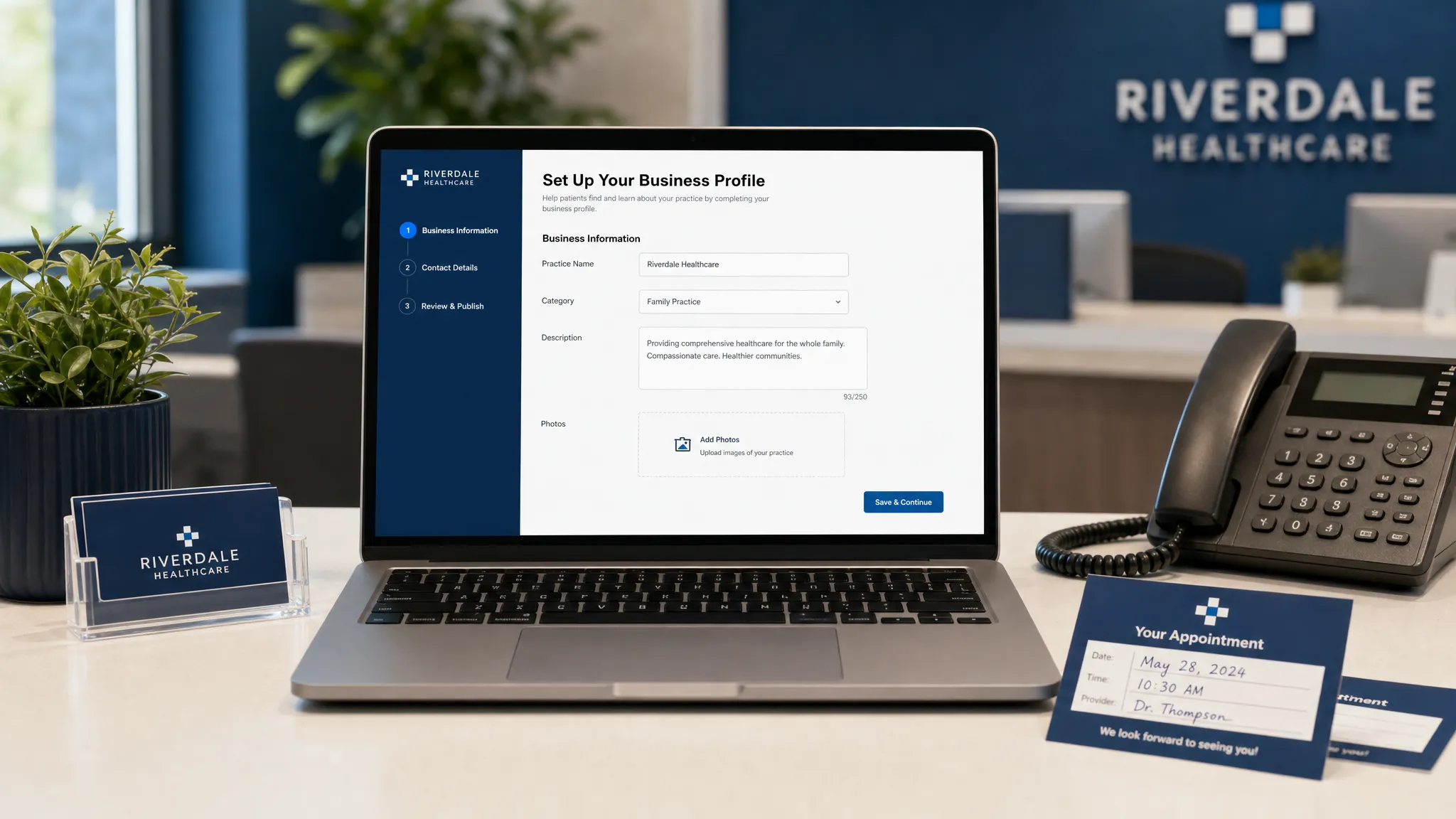
What to complete after your profile is live
Creating the profile gets you listed. Optimizing it helps turn visibility into patient action. Once your Google Business Profile is live, focus on the sections that influence trust, relevance, and conversion.
| Profile area | Why it matters | Practical recommendation |
|---|---|---|
| Business description | Helps patients understand your positioning. | Write a concise overview of who you serve, what you do, and what makes your practice helpful. |
| Services | Connects your profile to patient searches. | Add real services using patient-friendly wording. |
| Photos | Builds trust before a patient calls. | Use authentic images of your exterior, reception area, team, and treatment spaces. |
| Reviews | Influences patient confidence and local prominence. | Ask consistently, respond professionally, and never include private patient details. |
| Appointment link | Reduces friction for ready-to-book patients. | Link to a scheduling or contact page that works well on mobile. |
| Hours | Prevents wasted calls and frustration. | Keep regular, holiday, and special hours current. |
| Q&A | Answers common questions directly in search. | Monitor questions and answer them accurately. |
Write a clear practice description
Your description should be helpful, not hype-heavy. Explain the type of practice you run, who you serve, your location, and the main categories of care you provide.
For example, a dental practice might mention preventive care, cosmetic dentistry, restorative care, emergency appointments, or pediatric services if those are real offerings. A pain management practice might mention evaluation, treatment planning, and non-surgical care options where appropriate. Keep claims accurate and avoid guarantees.
Add services that match how patients search
Services help Google and patients connect your profile to specific needs. Use terms that real patients understand. A patient may not search using clinical language, so balance professional accuracy with plain English.
A physical therapy clinic could add services such as sports injury rehabilitation, post-surgical rehabilitation, balance therapy, or back pain physical therapy if those services are offered. An eye care practice could add comprehensive eye exams, contact lens exams, dry eye treatment, pediatric eye care, or LASIK consultations if accurate.
Avoid adding services you do not provide just to capture searches. That can create poor-fit calls, bad patient experiences, and weaker trust.
Upload real, privacy-safe photos
Photos are one of the simplest ways to make your practice feel real. Patients often want to know what the building looks like, where to park, what the reception area feels like, and whether the office appears clean and professional.
Use real images whenever possible. Exterior photos help patients find you. Interior photos reduce uncertainty. Team photos build familiarity. Treatment-room photos can be helpful, but they should be clean, professional, and free of patient information.
Never upload photos that reveal protected health information, patient charts, identifiable patients without proper consent, or computer screens containing private data.
Build a steady review system
Reviews affect both patient trust and local search performance. The best approach is to ask consistently after positive service moments while following platform policies and healthcare privacy rules.
Do not offer incentives for reviews. Do not pressure patients. Do not ask staff to write fake reviews. When responding, keep replies general and professional. Even if a patient shares personal health details in their review, your response should not confirm their treatment, diagnosis, or status as a patient.
If reviews are a weak point for your practice, read this guide on how to get more Google reviews for your Louisville business.
Monitor questions and answers
The Q&A section can be useful, but it can also become a liability if ignored. Anyone can ask questions, and in some cases other users may answer. Your practice should monitor this area and provide accurate responses.
Good questions to answer include parking instructions, accepted appointment types, how to request a consultation, whether new patients are being accepted, and what to bring to a first visit. Avoid giving personalized medical advice in Q&A.
Use updates when they are genuinely helpful
Google Business Profile updates can announce timely information, seasonal reminders, new service availability, expanded hours, or educational content. For healthcare practices, updates should be professional and patient-focused.
Do not post anything that sounds like a medical guarantee. Do not use patient stories without proper consent. Focus on practical information that helps patients take the next step.
Give the right people access without sharing passwords
Once your profile is verified, you may want a practice manager, front desk lead, or marketing partner to help manage it. Do not share the main Google account password. Instead, add users with the appropriate role.
User access helps protect ownership while allowing trusted team members to update hours, respond to reviews, add photos, or manage profile details.
As a general rule, the practice owner or leadership-controlled account should remain the primary owner. Review access periodically and remove users who no longer work with your practice.
Healthcare-specific tips for a stronger profile
Healthcare marketing has higher trust requirements than many other industries. A restaurant can be casual and playful. A medical, dental, vision, pain, or therapy practice needs to be clear, credible, and privacy-aware.
First, avoid overpromising. Phrases like guaranteed results, pain-free every time, or best in town can create compliance concerns and reduce trust. Focus instead on experience, services, accessibility, convenience, and patient-centered care.
Second, make appointment paths obvious. If your profile gets attention but patients cannot easily book, call, or request information, you lose demand at the final step. Your profile should connect to a mobile-friendly website with clear calls to action.
Third, keep your details consistent across the web. Your Google Business Profile should match your website, insurance directories, healthcare directories, social profiles, and local citations. Inconsistency can create friction for both Google and patients.
Fourth, think beyond traditional Google Search. Complete, consistent business information can also support visibility in voice search and AI-assisted discovery. Google, map apps, and AI systems rely on clear entity information to understand which businesses are relevant to local questions.
Common mistakes to avoid
Most Google Business Profile problems are not caused by one dramatic error. They are usually caused by small inconsistencies and neglected details that build up over time.
Avoid these common mistakes:
- Creating a duplicate profile instead of claiming an existing one.
- Adding keywords to your practice name that are not part of your real name.
- Choosing a vague or inaccurate primary category.
- Leaving services, photos, appointment links, or descriptions blank.
- Forgetting to update holiday hours or temporary closures.
- Ignoring reviews, Q&A, or suggested edits.
- Using stock photos instead of authentic practice photos.
- Letting former employees or vendors retain profile access.
If your profile has been live for months but still produces few calls, the issue may not be setup alone. You may need stronger reviews, better local SEO, a more useful website, clearer service pages, or improved conversion tracking.
How to know whether your profile is working
A Google Business Profile should be judged by patient actions, not just views. Impressions are useful, but the real question is whether the profile is helping more qualified patients contact your practice.
Review your profile performance regularly and look for trends over time.
| Metric | What it tells you | What to watch |
|---|---|---|
| Calls | Whether searchers are contacting your practice. | Spikes, drops, missed-call patterns, and call quality. |
| Website clicks | Whether users want more information before contacting you. | Which pages visitors land on and whether they convert. |
| Direction requests | Whether local patients are considering a visit. | Patterns by neighborhood or ZIP code. |
| Search terms | Which queries are triggering your profile. | Whether searches match your highest-value services. |
| Reviews and rating | How much trust your profile creates. | Review velocity, rating trends, and response consistency. |
| Photo views | Whether visual content is engaging users. | Whether new photos improve interaction. |
For healthcare practices, the most important metric is usually not profile traffic. It is booked appointments. If possible, connect profile performance to call handling, form submissions, appointment requests, and actual new patient volume.
Your profile works best as part of a local growth system
A Google Business Profile is powerful, but it should not stand alone. The strongest practices connect GBP optimization with local SEO, website conversion, reviews, paid search, and follow-up systems.
For example, a patient may first discover your practice in Google Maps, then visit your website, read a service page, check reviews, and finally call or submit a form. If any part of that journey is weak, the profile may get attention without producing appointments.
That is why GBP and SEO should work together. Your profile can create fast local visibility, while your website builds authority for services, conditions, locations, and questions patients search before booking. For a deeper comparison, read Google Business Profile vs SEO.
Frequently Asked Questions
Is a Google Business Profile free? Yes, creating and managing a Google Business Profile is free. The real investment is the time required to set it up correctly, keep it updated, generate reviews, add photos, and connect it to a patient acquisition strategy.
How long does Google Business Profile verification take? Verification time varies depending on the method Google offers and whether your information is clear and consistent. Some methods can be quick, while postcard or manual reviews may take longer.
Can a healthcare practice create profiles for each provider? Sometimes. Individual provider profiles may be appropriate when the provider is public-facing, works at a verified location, and can be contacted directly. However, creating unnecessary provider profiles can create confusion, so start with the main practice profile first.
What if my practice already has a Google listing? Claim the existing profile rather than creating a duplicate. Duplicates can split authority, confuse patients, and create cleanup problems later.
Should I use my homepage or appointment page as the website link? For a single-location practice, the homepage may be fine if it has clear appointment options. For multi-location groups, link to the matching location page. If your appointment page is strong and mobile-friendly, it may be the best choice.
How often should I update my Google Business Profile? Review key details at least monthly and any time something changes. Hours, services, photos, team information, and appointment links should stay current. Reviews and Q&A should be monitored more frequently.
Can Google Business Profile help my practice appear in AI search results? It can support visibility because complete and consistent business information helps search systems understand your practice. GBP should be paired with strong local SEO, reviews, service pages, and clear website content for the best long-term results.
Need help turning your profile into booked appointments?
Creating your Google Business Profile is a smart first step. The next step is making sure it supports real patient growth.
Louisville Web Lab helps healthcare practices improve local visibility, Google Business Profile performance, websites, Google Ads, automation, reviews, and patient acquisition systems. If your practice is set up online but not getting enough qualified calls or appointment requests, we can help diagnose the gaps.
Book a diagnostic call with Louisville Web Lab and find out what is holding back your local search performance.